
Properties

Properties page shows the list of rental properties, with their addresses and owner names.
Properties’ Menubar:

The Properties’ menubar provides the ability to search for a property, filter the list of properties based on their status, and print the list of properties with their details as shown on the screen.
Search field
This field is used for searching for a specific property based on its address.
Active properties’ filter
This filter allows the user to get a list of active or inactive properties, based on their status.
Proreties Extract
Properties Extract report is needed to show all properties data in the table format.
How to add properties

The creation of the property’s account starts with clicking the Add property button. As a result, the property’s details can be seen.
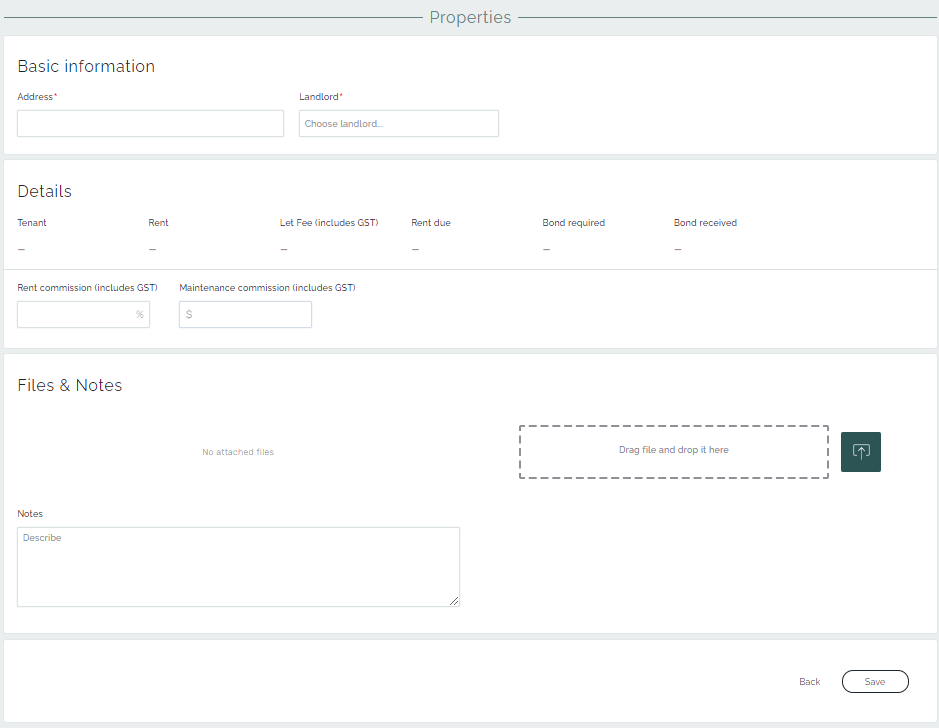
The Property’s details page contains information about the property, such as the address, the owner, and the tenant residing in the property. The information regarding the lease, bond, and fees show when the tenant is linked to this property.
Property’s details page
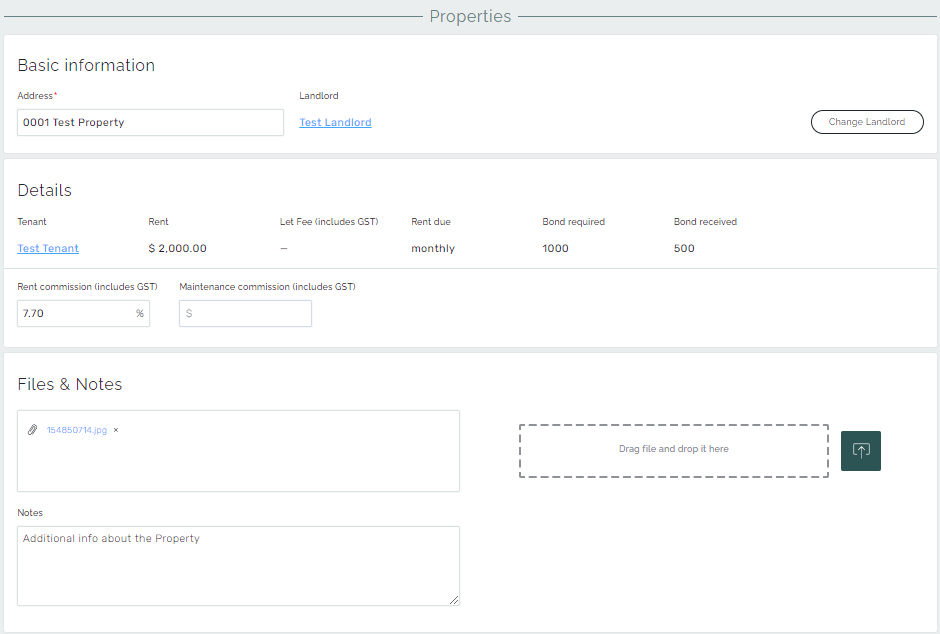
The Property’s details page consists of general information regarding the property.
It shows the address and owner of the property. It is also possible to change the owner by clicking the Change Owner button on the right side corner.
The Details part shows important lease information and features, such as the tenant of this property, rent, let fee, bond, rent commission, and maintenance commission. As a note, fees updated here will take effect with the newly added rent receipts only. It will not change the fee rates for rent receipts already entered into the system.
Files & Notes part is used by adding additional information about the property, like pictures, documents, and other important details.

Furthermore, it is possible to make the property inactive. It is used when the property is not going to be rented via the client anymore.
Save button must be clicked on to store the changes made on the property details page.